How to Hear Voice Comms in a FACEIT Demo (CS2)
FACEIT records both teams' voice, but only in one of the two demos a match leaves you. Which file to open, the three FACEIT commands, and the slot bitmask.
A FACEIT match leaves you two demos: the Valve one in your in-game match history, which is silent, and FACEIT's own .dem.zst from the match room, which has both teams' voice in it. Grab the wrong file and no console command will help, because there is nothing in it to unmute.
Get that right and the rest is two commands and a number.
Just want the commands? Upload the
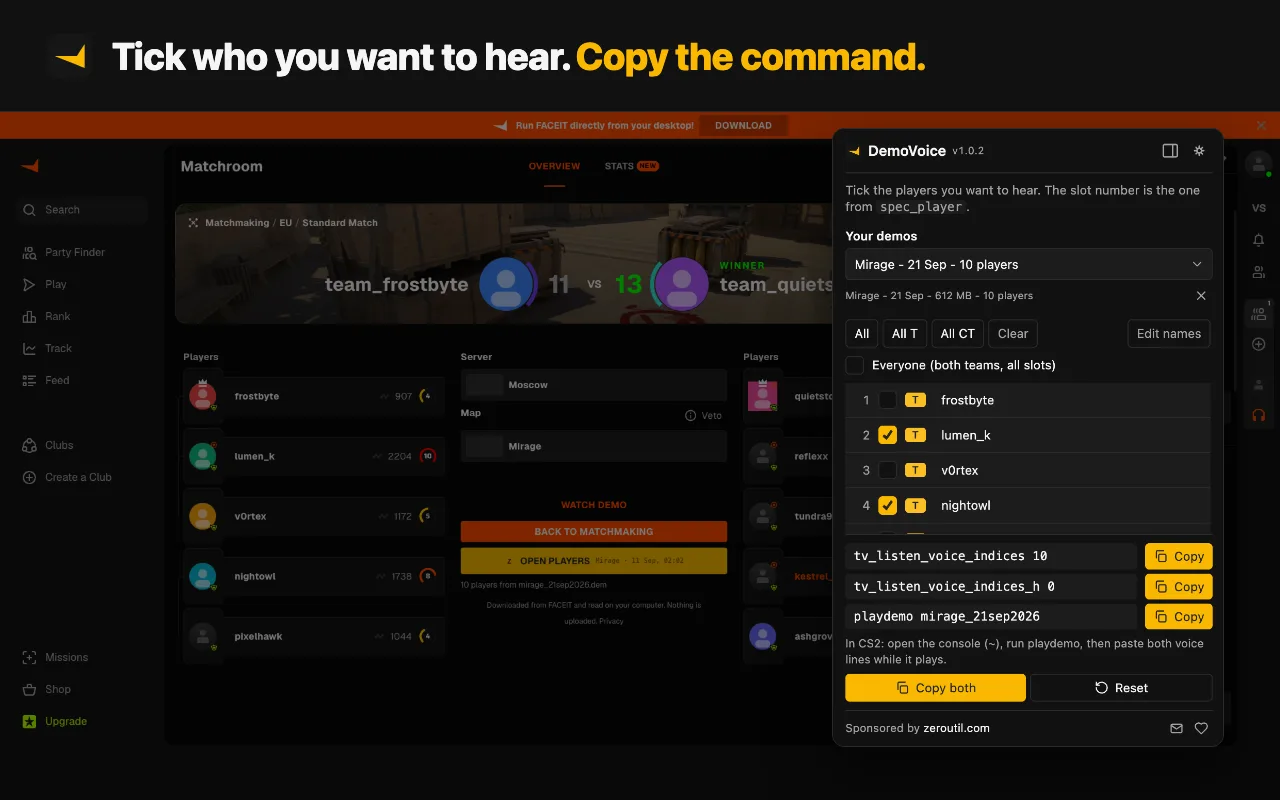
.dem.zstto the CS2 Voice Comms Calculator, tick the players you want to hear, and copy the ready-madetv_listen_voice_indicescommands. The rest of this page explains why they work.
Which of your two demos has the voice
Valve matchmaking and Premier demos contain no voice audio data. Not muted, not encrypted - absent. The tool that extracts voice tracks out of Counter-Strike demos carries the warning at the top of its README: there is nothing in an MM demo to extract.1 No console command can play back audio that was never written to the file.
The second half is the part most guides skip. Voice on a SourceTV server is not automatic either. In CS2, SourceTV does not capture player voice unless the server turns it on, which historically meant sv_alltalk 1 or a plugin doing it for you.2 FACEIT records comms and tells players how to play them back.5 A pickup server someone rented last week very possibly does not.
| Demo source | Contains voice? |
|---|---|
| FACEIT | Yes |
| ESEA and other leagues | Yes |
| Community SourceTV server | Only if that server enabled it |
| Valve matchmaking | No |
| Valve Premier | No |
So if a demo is silent, the question is not "what did I type wrong" until you have confirmed the demo could ever have had voice in it.
What does tv_listen_voice_indices do?
It decides whose voice you hear while watching a demo through SourceTV. Its default is 0, and 0 means nobody.2
The value is a bitfield of player slots:
-1- hear everyone, because -1 is every bit set0- hear nobody, the default and the reset- any other number - hear the specific set of slots whose bits are set
The _h command is not a copy, it is the other half
This is the single most misunderstood part, and most guides repeat the mistake.
tv_listen_voice_indices and tv_listen_voice_indices_h are the two halves of one 64-bit bitfield. The first holds the low 32 bits, addressing player slots 0 to 31. The _h one holds the high 32 bits, addressing slots 32 to 63.2 CS Demo Manager generates them exactly that way: one loop, one bit per player id, low value for ids under 32 and high value for ids from 32 up.3
Which changes the advice you will read everywhere:
- To hear everyone, set both to
-1. That is the recipe FACEIT publishes,5 and it works because -1 fills every bit of both halves. - To hear specific players, put the mask in
tv_listen_voice_indicesand set_hto0. In a 5v5 nobody is in slot 32 or above, so_hhas no one to address. Copying the same number into it does nothing useful, and on a big SourceTV server it would unmute a mirror-image set of high slots you did not choose.
Setting _h to 0 also clears whatever it was left at earlier in the session, which is worth doing on its own.
If you only need one person's callouts rather than a whole side, hearing a single player's voice comms in a CS2 demo walks through picking the slots by hand.
How the slot bitmask works
Each bit maps to one slot. Slot 1 is bit 0, slot 2 is bit 1, slot 3 is bit 2, and so on - each slot is worth double the one before. Add up the values of the slots you want:
| Slot | Bit value |
|---|---|
| 1 | 1 |
| 2 | 2 |
| 3 | 4 |
| 4 | 8 |
| 5 | 16 |
Slots 1, 3 and 4 give 1 + 4 + 8 = 13:
tv_listen_voice_indices 13
tv_listen_voice_indices_h 0
The voice comms calculator does the addition for you. If you would rather work it out from a binary pattern, our number base converter turns it into the decimal CS2 wants.
Finding out who is in which slot
Slot order comes from the player entity order recorded in the demo, so it is not the scoreboard order and there is no reason it should match your intuition. It is, however, fixed for that demo - the same file replays with the same slots every time. What does not carry over is the mask itself: a number that isolated your IGL in Tuesday's match will point at a stranger in Thursday's.
The manual way is to step through them:
spec_player 1
spec_player 2
spec_player 3
and note who appears. The faster way is to upload the demo to the calculator, which reads the slot table out of the file and labels each one with the player's name and team, so you skip the loop.
Hearing one team
Once you know which slots belong to which side, add that side's values together. The calculator has All / All T / All CT buttons that build the number for a whole side in a click, which is what you want for casting or cutting highlights, where ten overlapping voices bury the round.
One caveat worth knowing if you use CS Demo Manager's voice_ct and voice_t aliases instead: they refer to each player's starting side, not their current one.4 After the half they no longer mean what the names suggest. The same tool also exposes voice_STEAMID64 for a single player.4
If the side you want is the other one, hearing the enemy team is where that gets complicated, because whether their voice is in the file at all was decided by the server during the match.
Reading text chat as well
Voice is half the record. To bring in the in-game text chat:
tv_relaytextchat 22 relays everything including all-chat, and 0 hides chat entirely. FACEIT includes it in the three commands it hands out for demo review.5 It earns its place when you can hear a call but cannot tell whose voice it is.
They reset every time you close the game
Both convars go back to 0 when CS2 exits. This is the "it worked yesterday" trap: nothing broke, the session simply started from the default of silence again. Keep the commands somewhere you can paste from rather than rebuilding the number each time.
Putting it together
- Confirm the demo can contain voice - FACEIT or a league, not MM or Premier.
- Find which players sit in which slots, or let the calculator read them.
- Add up the bit values for the players you want.
- Set
tv_listen_voice_indicesto that number andtv_listen_voice_indices_hto0. For everyone, set both to-1. - Add
tv_relaytextchat 2if you want chat, then play the demo.
Skip the arithmetic and the spec_player loop with the CS2 Voice Comms Calculator: upload the demo, tick the players, copy the commands.
Steps 1 and 2 are also the two you can stop doing on FACEIT entirely. DemoVoice adds a button to the match room, so the right .dem.zst is the only one it can pick, it unpacks it as it downloads, and it reads the slot table out of the file on your computer. If you are weighing it against CS Demo Manager or the other calculators, every way to hear FACEIT demo voice, compared lays out what each one does and leaves to you.
Free browser extension
 Free browser extension
This whole page is the manual version. On a FACEIT match room, DemoVoice gets the correct demo, unpacks it, reads the slots and writes both commands - nothing to unzip and nothing to upload.
Once the voice is audible, the other half of demo review is getting to the moment you actually wanted. Converting a tick to a timestamp covers demo_gototick, the argument order that catches people, and why the tick rate has to come from the demo rather than from habit.
Sources
Every number in this article traces to a source below. Where a claim could not be sourced, it was cut rather than softened.
- Peer-reviewedAkiVer
That Valve matchmaking demos contain no voice audio data, stated as a standing warning by the author of the tool that extracts voice from CS:GO and CS2 demos.
- Peer-reviewedb0ink
The verbatim convar descriptions, that tv_listen_voice_indices is a bitfield of player slots 0 to 31 and tv_listen_voice_indices_h the high 32 bits covering slots 32 to 63, both defaulting to none, and that CS2 SourceTV does not record player voice unless the server enables it.
- Primary sourceCS Demo Manager
That the value is one bitmap split into two 32-bit halves, low for ids 0 to 31 and high for ids 32 to 63, as implemented by the demo tool that generates these commands.
- Primary sourceCS Demo Manager
The voice_ct, voice_t and voice_STEAMID64 aliases, and that the team aliases refer to the starting side rather than the current one.
- Primary sourceFACEIT
The exact three-command recipe FACEIT tells players to paste when reviewing a FACEIT demo, and that FACEIT demos do carry voice comms.
Topics
Tools mentioned in this article
- CS2 Voice Comms Calculator - Hear specific players in a CS2 or FACEIT demo - upload it to auto-fill players and get the tv_listen_voice_indices commands.
- CS2 Demo Tick Calculator - Convert a CS2 demo tick to a timestamp and back, and copy the demo_gototick command that jumps there.
- CS2 Crosshair Code Decoder - Decode a CSGO-xxxxx crosshair share code into cl_crosshair console commands.
- CS2 Sensitivity Converter - Convert mouse sensitivity between CS2, Valorant, Apex and more, with eDPI and cm/360.
- SteamID Converter - Convert between SteamID64, STEAM_0:Y:Z, SteamID3 [U:1:W], account ID and profile URL.
Get new tools by email
New tools and the occasional deep-dive, about once a month. No spam, no sharing your address, unsubscribe in one click.