How to Hear Voice Comms in a CS2 Demo
Hear voice comms in a CS2 demo with tv_listen_voice_indices: which demos record voice, how the slot bitmask works, and how to isolate one player or a side.
Voice in a Counter-Strike 2 demo is off until you turn it on, and the command that turns it on - tv_listen_voice_indices - takes a number rather than an on switch. That number is what this page is about. It decides whether you hear everyone, one side, or a single player.
Quick answer: to hear everyone, run
tv_listen_voice_indices -1andtv_listen_voice_indices_h -1. For specific players, put the sum of their slot bit values in the first command and leave_hat0. To skip the arithmetic, upload the demo to the CS2 Voice Comms Calculator, tick who you want, and copy.
Step 1 - Get a demo that actually has voice in it
Valve matchmaking and Premier demos contain no voice audio data, so there is nothing to unmute.2 Voice comes from FACEIT, ESEA and other SourceTV servers, and FACEIT demos download as .dem.zst. Reviewing a FACEIT demo covers which of the two files to open and why a community-server demo can be silent too.
Step 2 - Find the player's slot
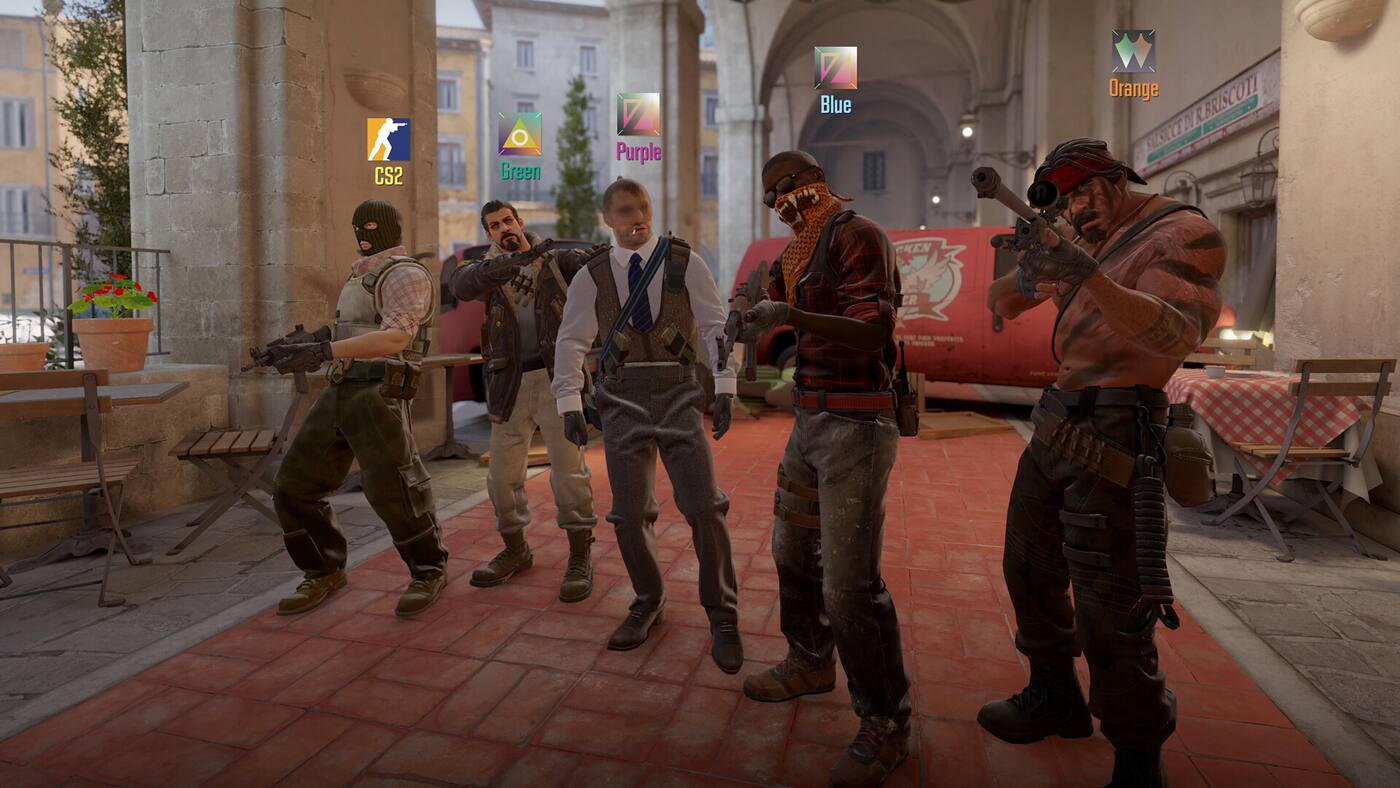
Skip to Step 4 if you just want everyone. To pick specific players you need their slots, and slots are not labelled. Step through them in the console:
spec_player 1
spec_player 2
spec_player 3
and note which one shows the player you want. Uploading the demo to the calculator reads the whole slot table at once and puts a name and a team next to each, which is the same information without the clicking.
Step 3 - Turn the slot into a number
Each slot is worth double the one before it, and you add up the ones you want:
| Slot | Bit value |
|---|---|
| 1 | 1 |
| 2 | 2 |
| 3 | 4 |
| 4 | 8 |
| 5 | 16 |
| 6 | 32 |
One player is just their own value: slot 3 is 4. Several players is the sum: slots 1, 3 and 4 give 1 + 4 + 8 = 13. Our number base converter will do it from a binary pattern if you prefer to see the bits.
Step 4 - Paste the commands
For everyone, both halves get -1:
tv_listen_voice_indices -1
tv_listen_voice_indices_h -1
For specific players, the slot mask goes in the first command and _h stays at 0:
tv_listen_voice_indices 4
tv_listen_voice_indices_h 0
The _h line is not a typo and not a copy. The two convars are the low and high halves of a single 64-bit bitfield: the first addresses player slots 0 to 31, the second addresses 32 to 63.1 Nobody in a 5v5 is in slot 32, so a specific-player mask leaves _h with no one to unmute, and 0 just clears whatever it was left at earlier in the session. -1 is the exception: it fills every bit of both halves, so both lines carry it.
Step 5 - Play the demo
You will hear the players you picked - everyone, if you used -1. Both convars go back to 0 when CS2 closes, so the next session starts silent again; that is the whole explanation for "it worked yesterday".
Hearing one whole team
Add up that side's slots and use the total. The voice comms calculator has All T and All CT buttons for it, which is what you want for a highlight cut or for studying one team's mid-round calling without crosstalk.
If you use CS Demo Manager's voice_ct and voice_t aliases instead, know that they follow each player's starting side, not the side they are on now.3 After the half they say the opposite of what you meant.
Picking the opposing five is a different problem again, because their voice may not be in the file: hearing the enemy team in a demo covers what the server had to allow for it to be there.
Why the number stops working
Slots come from the player entity order recorded in the demo. That is not the scoreboard order, and it has no reason to match between two matches with the same ten people in them. Within one demo the slots are fixed - the file replays the same way every time - but the mask itself does not travel. Build it per demo.
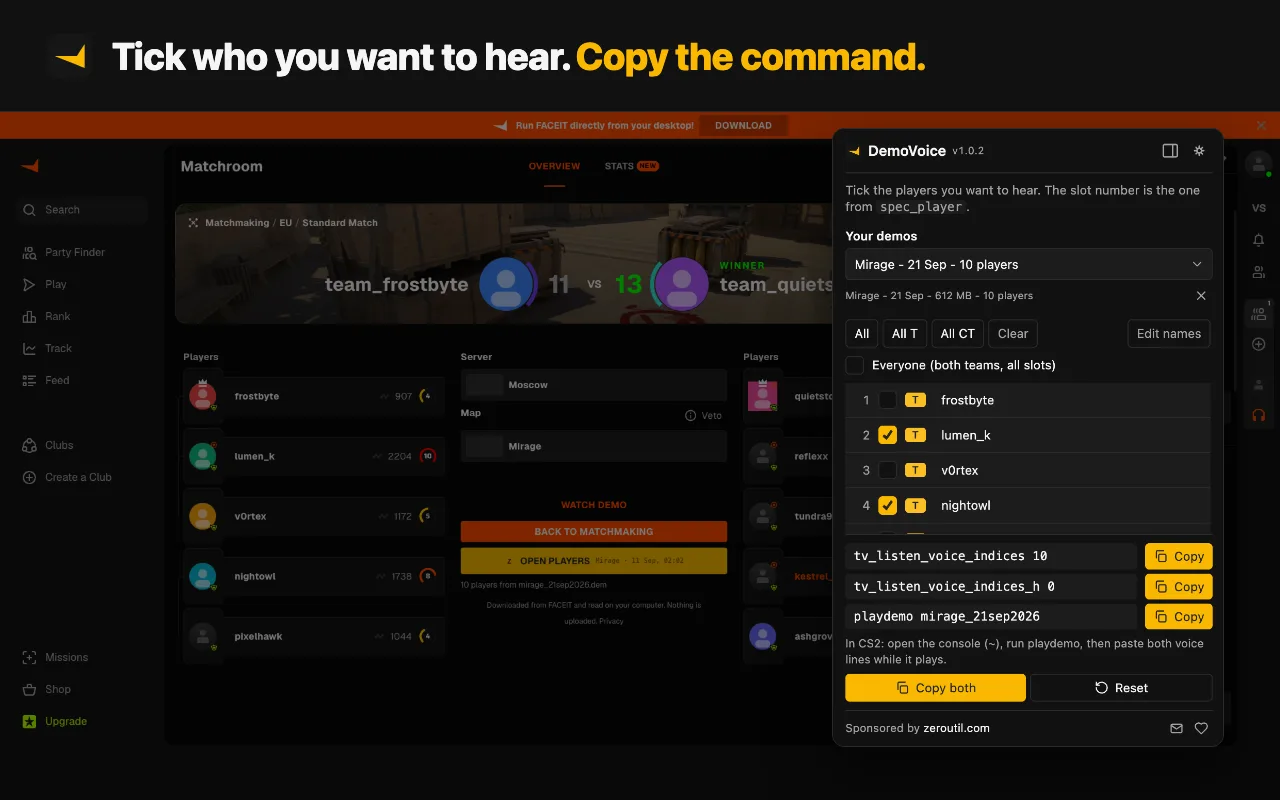
Which is the argument for not building it by hand at all: upload the demo once to the CS2 Voice Comms Calculator, tick the player, copy the two lines.
If the demo in question came from FACEIT, there is a shorter route still, and getting voice out of a FACEIT match demo covers which of the two files that match left you.
Free browser extension
 Free browser extension
On FACEIT demos, DemoVoice skips the by-hand version: it takes the demo from the match room, unpacks it on your computer and reads each player's slot straight out of the file, so the mask matches the demo you are watching.
With the voice sorted, the remaining cost of demo review is scrubbing to the right moment. If you have a tick rather than a timestamp, converting a tick to a time covers the division, the frame-versus-tick confusion behind most wrong jumps, and the demo_gototick argument order.
Sources
Every number in this article traces to a source below. Where a claim could not be sourced, it was cut rather than softened.
- Peer-reviewedb0ink
The verbatim convar descriptions, that tv_listen_voice_indices is a bitfield of player slots 0 to 31 and tv_listen_voice_indices_h the high 32 bits covering slots 32 to 63, and that both default to none.
- Peer-reviewedAkiVer
That Valve matchmaking demos contain no voice audio data at all.
- Primary sourceCS Demo Manager
The voice_ct and voice_t aliases, and that they refer to each player's starting side rather than their current one.
Topics
Tools mentioned in this article
- CS2 Voice Comms Calculator - Hear specific players in a CS2 or FACEIT demo - upload it to auto-fill players and get the tv_listen_voice_indices commands.
- CS2 Demo Tick Calculator - Convert a CS2 demo tick to a timestamp and back, and copy the demo_gototick command that jumps there.
- SteamID Converter - Convert between SteamID64, STEAM_0:Y:Z, SteamID3 [U:1:W], account ID and profile URL.
Get new tools by email
New tools and the occasional deep-dive, about once a month. No spam, no sharing your address, unsubscribe in one click.