Why Reversing a Long Video Runs Out of Memory, and the Fix
FFmpeg's reverse filter holds every frame in RAM. The arithmetic, a measured peak, and a chunked method that reverses a long clip in bounded memory.
A 20-second clip reverses in a blink. A ten-minute one can exhaust memory and kill the job. The file size has nothing to do with it. The cause is a single sentence in FFmpeg's documentation, and once you can do the arithmetic you can pick a clip length that works.
What the filter has to hold
A reversed video starts with the last frame of the original. To emit that frame first, a filter has to have read the whole clip, and it has to keep every frame it read until it has emitted them all. FFmpeg's documentation says so directly: the reverse filter "requires memory to buffer the entire clip, so trimming is suggested"1. The audio filter areverse carries the same warning1.
The buffer holds decoded frames, not the compressed stream. A decoded frame in the usual yuv420p layout takes 12 bits per pixel3, so its size is width times height times 1.5 bytes. A 1920 by 1080 frame is 3,110,400 bytes, whether the file it came from was a low-bitrate recording or a high-bitrate camera original.
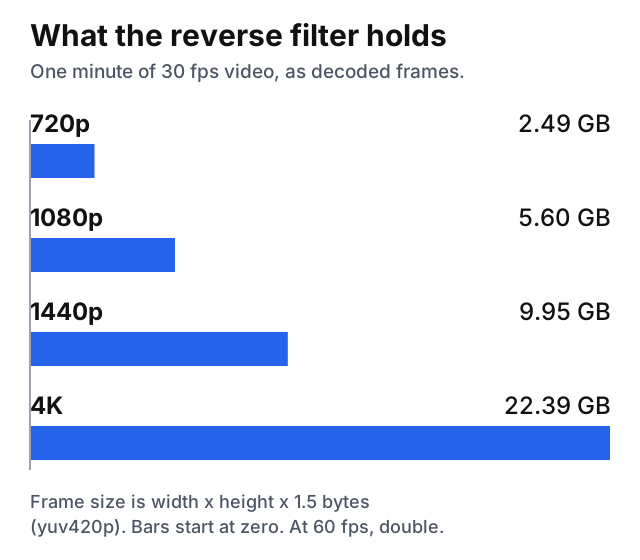
At 30 fps, one minute is 1,800 frames. That is 2.49 GB at 720p, 5.60 GB at 1080p, 9.95 GB at 1440p and 22.39 GB at 4K. At 60 fps every figure doubles.
Measuring it
The arithmetic should match what the process actually asks the operating system for. In November 2026, on an Apple M3 Pro with FFmpeg 9.0.2, a synthetic 1080p, 30 fps H.264 clip was cut to four lengths, 2, 5, 10 and 20 seconds (60 to 600 frames), and run through -vf reverse with the output thrown away, so that only the filter's own memory counted. The peak memory footprint, as reported by /usr/bin/time -l:
| Clip length | Decoded frames | Peak footprint |
|---|---|---|
| 2 s | 187 MB | 281 MB |
| 5 s | 467 MB | 565 MB |
| 10 s | 933 MB | 1,040 MB |
| 20 s | 1,866 MB | 1,950 MB |
The footprint tracks the frame arithmetic closely, with about 90 MB on top for the program itself. Doubling the clip doubles the memory. There is no ceiling short of the clip's end, which is why the failure shows up on long files and never on short ones.
One caution if you repeat this on a Mac. The "maximum resident set size" line in the same output under-reports as the buffer grows, because macOS compresses idle memory: it read 1,139 MB for the 20-second clip against a footprint of 1,950 MB. Use the footprint line.
The audio side is small by comparison. ffprobe reports AAC audio as 32-bit float samples (fltp), so stereo at 48 kHz is 384 KB per second, about 23 MB per minute of audio against 5.6 GB of video.
The encoder adds its own working memory on top. With a typical delivery encode, libx264 at the fast preset and AAC at 192 kbit/s, the same 20-second clip peaked at 2,548 MB in one pass, about 650 MB more than the frames alone.
Reversing in pieces
If the filter holds one piece at a time, memory depends on the piece length and not on the clip length. The method has four steps: cut the clip into pieces, reverse each piece, put the pieces in reverse order, join them.
# 1. cut at keyframes, without re-encoding
ffmpeg -i input.mp4 -c copy -f segment -segment_time 6 -reset_timestamps 1 seg%03d.mp4

# 2. reverse each piece
for f in seg*.mp4; do
  ffmpeg -i "$f" -vf reverse -af areverse \
    -c:v libx264 -preset fast -c:a aac -b:a 192k "r_$f"
done

# 3. list the reversed pieces, last one first
for f in $(ls r_seg*.mp4 | sort -r); do echo "file '$PWD/$f'"; done > list.txt

# 4. join without re-encoding
ffmpeg -f concat -safe 0 -i list.txt -c copy reversed.mp4
Step 1 uses the segment muxer, with reset_timestamps so that each piece starts near zero2. Step 4 uses the concat demuxer, which reads a script with one file directive per line2. Only step 2 decodes and encodes. The cut and the join copy streams. The -safe 0 flag lets the demuxer accept the absolute paths in the list, because by default it rejects unsafe file paths2.
On the same 20-second test clip cut into 6-second pieces, the peak footprint of each piece was 1,210, 1,208 and 1,209 MB, and 791 MB for the 2-second remainder. The one-pass run peaked at 2,548 MB. A 20-minute clip cut the same way would still peak near 1.2 GB, because the peak is set by the longest piece.
To check that the order comes out right, the test clip was reversed in one pass and in pieces, both times with a lossless encode, and the hashes of every frame were compared: 600 frames each, identical sequences.
What chunking costs
Pieces follow the keyframes. A copy cut can only begin a piece on a keyframe, and every segment starts with one2. The documentation adds that accurate splitting needs input keyframes at the times you want2. The test clip had a keyframe every 2 seconds, so a 6-second request gave 6-second pieces. A second clip with a keyframe every 10 seconds, given the same 6-second request, produced pieces of 10, 10 and 4 seconds. A file with long keyframe gaps gives long pieces, and the longest piece sets the memory.
The joints are not free. Both outputs had 600 frames. The one-pass file measured 20.000 seconds of video and audio. The chunked file measured 20.063 seconds of video and 20.071 seconds of audio, 63 and 71 milliseconds longer across four pieces. That is about two frames at 30 fps. It matters if you chain many short pieces or later line the result up against a separate audio track. The cause was not isolated here.
Every piece is encoded once. The pieces are decoded, reversed and encoded, and the join is a copy, so the result carries one generation of encoding loss, the same as a one-pass reverse.
Which route to take
For a short clip, the memory is not a problem, and the Video Reverser does the whole job in one step. For anything longer, the first move is the one FFmpeg's own documentation gives, which is to trim1. Cut the part you want with the Video Trimmer and reverse only that. A clip you want to play forward and then backward is a trim, a reverse and a Video Concatenator join.
If you need a whole long recording reversed, the four commands above are the way, with the piece length chosen from the table: pieces of 10 to 20 seconds at 1080p keep the filter under 2 GB.
Sources
Every number in this article traces to a source below. Where a claim could not be sourced, it was cut rather than softened.
- Primary sourceFFmpeg
That the reverse video filter and the areverse audio filter buffer the entire clip in memory and that trimming first is the documented advice, with the example trim=end=5,reverse.
- Primary sourceFFmpeg
That the segment muxer starts every segment on a keyframe of the reference stream, that accurate splitting needs input keyframes at the wanted times, that reset_timestamps makes each segment start near zero, and that the concat demuxer reads a text script with one file directive per line.
- Primary sourceFFmpeg
That AV_PIX_FMT_YUV420P, the common decoded layout for H.264 video, is planar YUV 4:2:0 at 12 bits per pixel.
Topics
- Ffmpeg
- Reverse Video
- Video Processing
- Memory
Tools mentioned in this article
- Video Reverser - Reverse an MP4, WebM, MOV or MKV video and its audio with one click. Server-side FFmpeg handles the full re-encode. Files auto-deleted after 15 minutes.
- Video Trimmer - Cut a section from MP4, WebM or MOV videos. Stream-copy is fast and lossless.